Using and Managing Writing Templates
Open templates in the composer, generate drafts from prompts, or save custom templates.
Open Loompify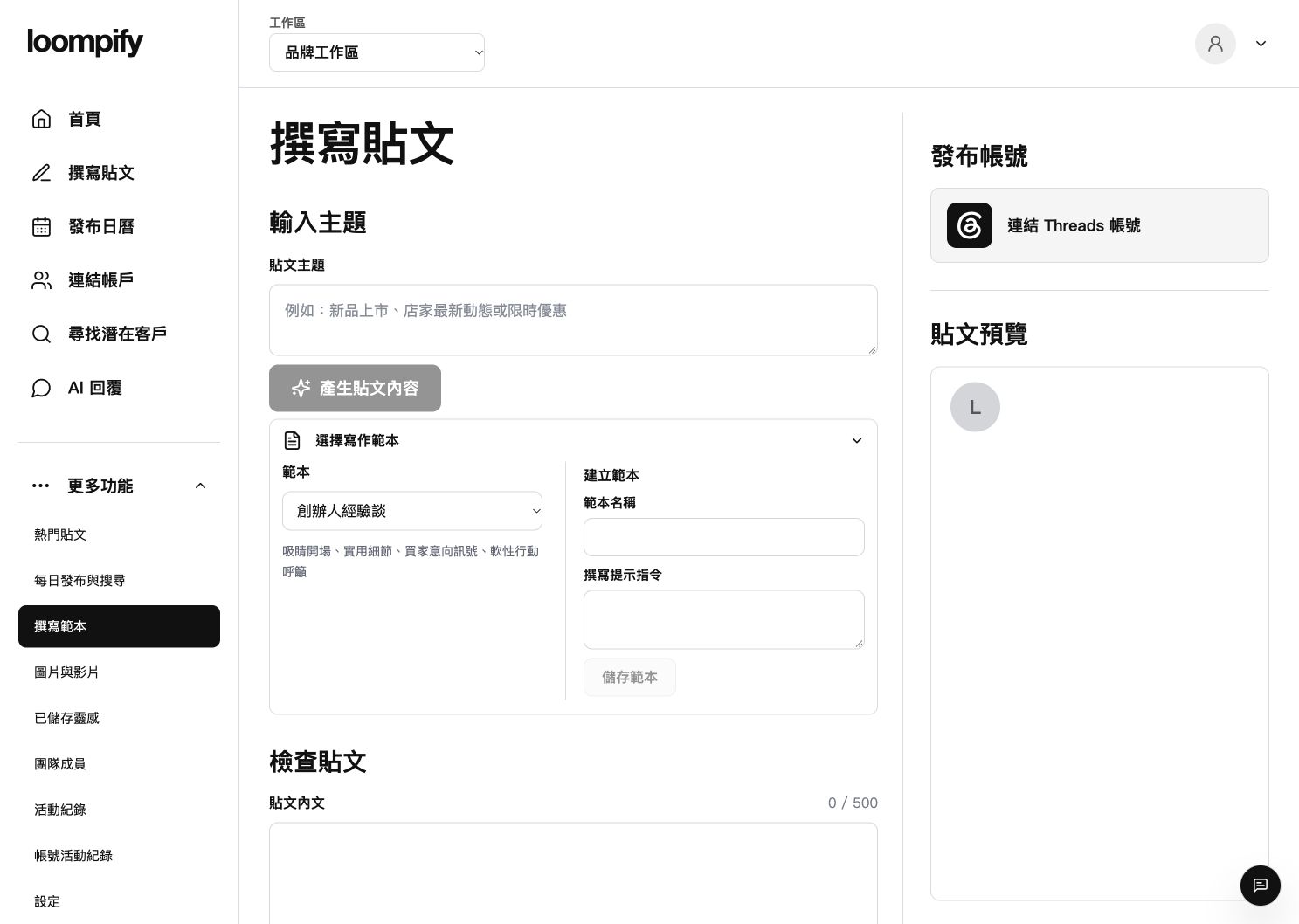
Before you start
Saved templates store reusable prompts, not scheduled posts. Cloud draft saving requires a connected account.
Step-by-step instructions
Open writing templates
Click More in the sidebar and select Writing templates to launch Create with the template panel expanded.
Select a template
Choose a pre-made template from the template dropdown menu.
Generate or write text
Enter a topic prompt to generate an AI draft, or type and edit your post directly.
Save template or save draft
Save custom prompts using Save template, or connect an account to save your post as a cloud draft.
Template panel troubleshooting
If the template panel fails to expand, reload the page or re-select Writing templates from the More menu.
Need help? ↗Updated