Managing Team Members
Invite existing platform users to collaborate in your workspace with clear permissions.
Open Loompify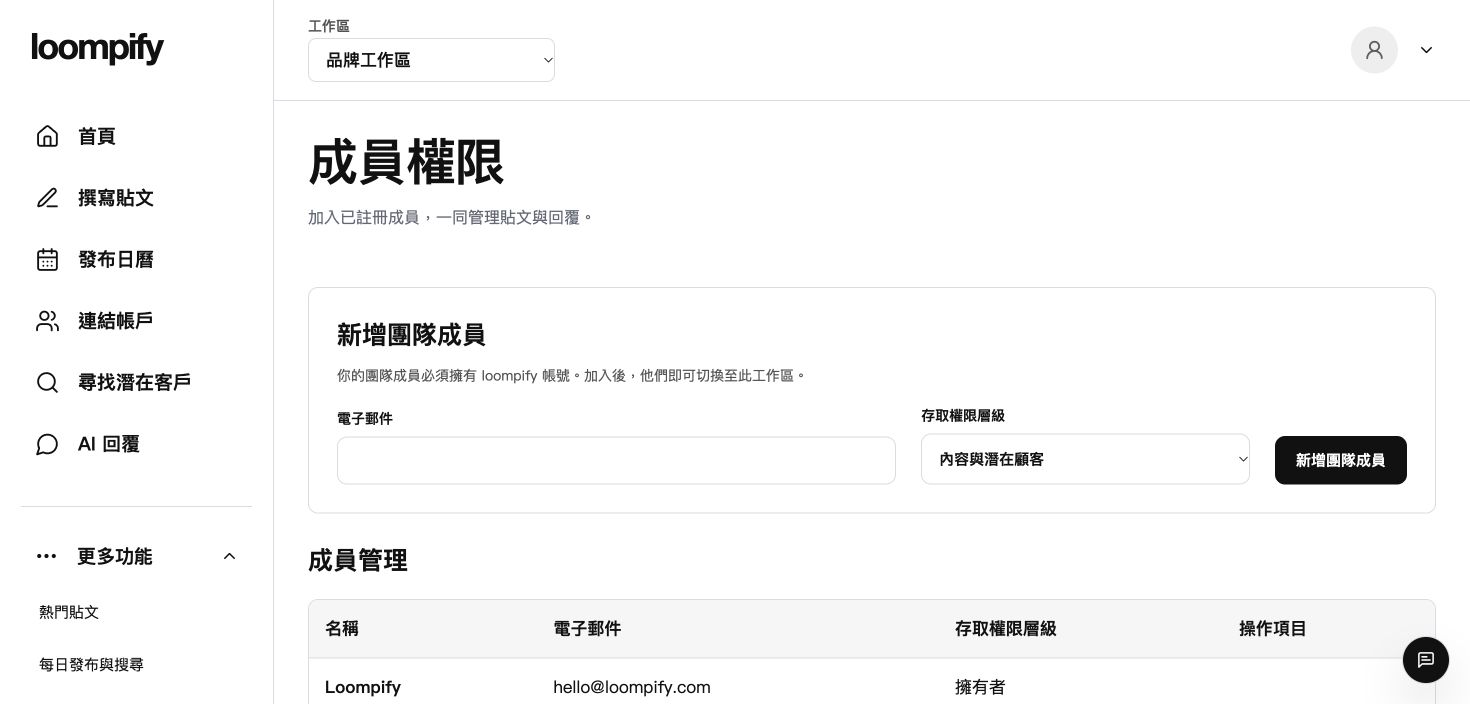
Before you start
Only existing registered users can be added; sending email invitations to non-registered users is not supported.
Step-by-step instructions
Open team settings
Click More in the sidebar and select Team to view workspace collaboration settings.
Add existing user
Enter the registered email address of an existing platform user to grant workspace access.
Assign user role
Select role-based permissions to control which features and settings the member can manage.
Review active team
Monitor member access levels and update permissions as your business structure changes.
Troubleshooting team access
If adding a user fails, verify that they have already registered their personal platform account.
Need help? ↗Updated